This archive contains the flash tool LiveSuit v1.11 and Widows USB drivers
needed when upgrading Allwinner A10 / A13
devices. You can download LiveSuit Pack v1.11 from here, here or here. + MediaFire Mirror. Download previous version from here.
Now, before anything, makes sure your tablet / android device is charged up, 100% charge is nice.
Once extracted, and before attaching your tablet to your PC, run the file 'LiveSuitPack_1.11.exe' from within the Livesuit folder. This should install a new device on your system (VID_1f3a_PID_efe8). This device may show with an exclamation mark in Windows Device Manager, this doesn't matter and can be ignored. Now edit the firmware name (.img file) that you have downloaded so that there are no Chinese or Foreign characters within the filename.
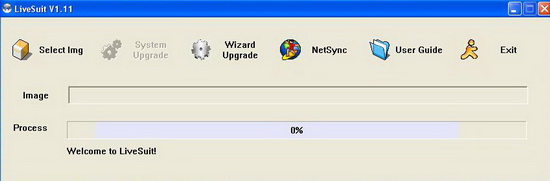
Without attaching your tablet to your PC run 'LiveSuit.exe' from within the Livesuit folder. You should get an application like in the image above. You will be asked if you want to be guided through the process, select no.
Once extracted, and before attaching your tablet to your PC, run the file 'LiveSuitPack_1.11.exe' from within the Livesuit folder. This should install a new device on your system (VID_1f3a_PID_efe8). This device may show with an exclamation mark in Windows Device Manager, this doesn't matter and can be ignored. Now edit the firmware name (.img file) that you have downloaded so that there are no Chinese or Foreign characters within the filename.
Without attaching your tablet to your PC run 'LiveSuit.exe' from within the Livesuit folder. You should get an application like in the image above. You will be asked if you want to be guided through the process, select no.
Click on the leftmost icon (a cube), browse to your downloaded firmware image, and select it.
Turn the tablet completely off. The tablet should be off throughout the next process. Hold down the power button for ten or fifteen seconds if you're not sure, just make sure it is off. Charged up, but off. Connect the USB cable to your tablet and hold down the volume+ button, keep the button pressed.
Connect the other end of the USB cable to your computer (keep that volume+ button pressed - I know, it hurts by now)
Using your third hand, straight after attaching the cable, and whilst still holding down the volume+ button, start pressing the tablet power button repeatedly (approx 1 press per second for 10 seconds is enough). This procedure puts the tablet into update mode.
Turn the tablet completely off. The tablet should be off throughout the next process. Hold down the power button for ten or fifteen seconds if you're not sure, just make sure it is off. Charged up, but off. Connect the USB cable to your tablet and hold down the volume+ button, keep the button pressed.
Connect the other end of the USB cable to your computer (keep that volume+ button pressed - I know, it hurts by now)
Using your third hand, straight after attaching the cable, and whilst still holding down the volume+ button, start pressing the tablet power button repeatedly (approx 1 press per second for 10 seconds is enough). This procedure puts the tablet into update mode.
After a few seconds a window will pop up on your PC asking if you want to perform a forced firmware update. You can stop the pain and release the volume+ at this point. Select yes. You will be asked if you're sure. Select yes.
The update will start and will take approx 3 minutes to complete. You will see a % complete progress bar during the process and will get a dialog saying OK when it's done. It is a non-linear progress bar, so even though it appears to be stuck at times, don't panic.
Turn your tablet on and you will have the new firmware, be happy/sad based on the fact that it is better/worse than your previous firmware.
Don’t miss any of our future video tutorials, follow us on Youtube. Like us on Facebook. Add us in your circles on Google+. Watch our photo albums on Flickr. Subscribe now to our newsletter.
I have a tablet with no vollume buttons...what will i do?
ReplyDeleteTab name.....
DeleteThis is so so helpful...your explanation is very comprehensible..Thanks alot
ReplyDeleteAmazing! ^_^ Super Thank You!!!!!!
ReplyDeleteGrtz>>>>>>>... ITS WORKED 86VEBC TABLET IS NOW PERFECTLY WORKING
ReplyDeletehttp://www.youtube.com/watch?v=tO7Leb72eVI&feature=player_embedded#t=0
ReplyDeleteHow to get image file china tab.......
ReplyDeletewi;; u please upload d files too in mediafire?
ReplyDelete@Jhon Ian
ReplyDeleteI just added for you a MediaFire mirror.
can any one post a link where can i get the right image file for my tab?
ReplyDelete@xt lai
ReplyDeleteWhat model is your tab?
i like it thanks but from where can we download a flash files
ReplyDeletei am working on x tab x8 tablet and i really want to flash it butt i dont know the tools or the details about how to do so
ReplyDeleteI have a cheap Serioux S900tab. Inside , the processor is Allwinner A13. Downloaded Live Suit 1.11 .Make sure the tablet is OFF. Hold vol + plug usb cable, and pressing "power " 10-15 times at 1s. In "device manager" is VID_1f3a_PID_efe8. But no popup from Live suit.
ReplyDeleteBY the way, I need , de fapt am nevoie , ca am vazut ca te cheama Dan , am nevoie de firmware pt S900tab serioux. NU gasesc pe nicaieri.A naibii chinezarie. AM gasit pe midpc.net M901 firmaware. S-a potrivit , da nu merge touchscreen. Vreun sfat?
ReplyDelete@Roxana Roxy
ReplyDeleteTrebuie sa ceri firmware-ul stock de la producator. Trebuie sa trimiti cererea ta catre adresa de contact de pe site-ul http://www.serioux.ro/contact. Acolo sunt procesate toate cererile de firmware-uri. Cand trimiti mesajul sa mentionezi modelul si SN tabletei.
Dupa ce il obtii sa ne dai si noua linkul. Succes si o zi excelenta!
wi;; u please upload d files too in mediafire
ReplyDeleteThis is the mediafire link --> http://www.mediafire.com/download/ixad7xdwz223gub/LiveSuitPack_1.11.zip
ReplyDeleteIt is also above, in the article...
living thing 7 inch tablet stuck o android logo....firmware please help..
ReplyDeletegood
ReplyDeleteجيد
ReplyDeleteProgress Stuck at 59% since 2 hours. Any solution?
ReplyDeleteMicromax Funbook Infinity p275 [Flashing Stock ROM]
Should the device be rooted?
@ALOK9x
ReplyDeleteChange the USB cable, change the USB port, try it from another PC. The device doesn't need to be rooted...
I'm looking for the stock firmware for heu008d 7" Ingo hello kitty tablet, thanks
ReplyDeletehi guy
ReplyDeletei been tried different things for my Tablet Bleytec, can u give me the correct mirror?
where do iget omg file sir?
ReplyDelete@conrad painto
ReplyDeleteFrom the website of the producer, from forums, blogs, etc.. Just search for it...
Need help please Zeki update image. Model # tbdg1073b.
ReplyDeleteplease i need help
ReplyDeletewhere do i get it file
@Ayaaba
ReplyDeleteWhat file exactly do yo need?
Hi, anybody knows what to do with error 0x162
ReplyDeletehi how to get img file for ampe a75 china tablet?
ReplyDeletehi, i need the link to download the LiveSuit
ReplyDeletei have ampe a85 and it is bricked will u help me recover it
ReplyDeleteThanks for this post
ReplyDeleteWhere can I download the new version of LiveSuit?
Tablets With USB Ports
Dear why Link Not Working For Download Live Suite
ReplyDeletegood apps
ReplyDeleteGood
ReplyDeletepleas rom tablette orro a950
ReplyDeletequiero flachear mi GO mobile 775
ReplyDeletewow nice tutorial......
ReplyDeletei have rom tablet a10-inet-1-rev05 witch file telecharging help me please!!!!!!!!!!!!!!!!!
ReplyDeletethankes
ReplyDelete